
Introduction
September 2026 brings several enhancements to SmartBus, focused on making vehicle monitoring, trip management, and playback history more convenient. This month’s updates improve how users access video-enabled vehicles, manage checkpoints during active trips, and retain historical journey information. Together, these enhancements create a more streamlined and efficient experience across Live Tracking, Driver App, and Vehicle Playback.
SmartBus Updates
1. Integrate Video Telematics changes – Live Tracking
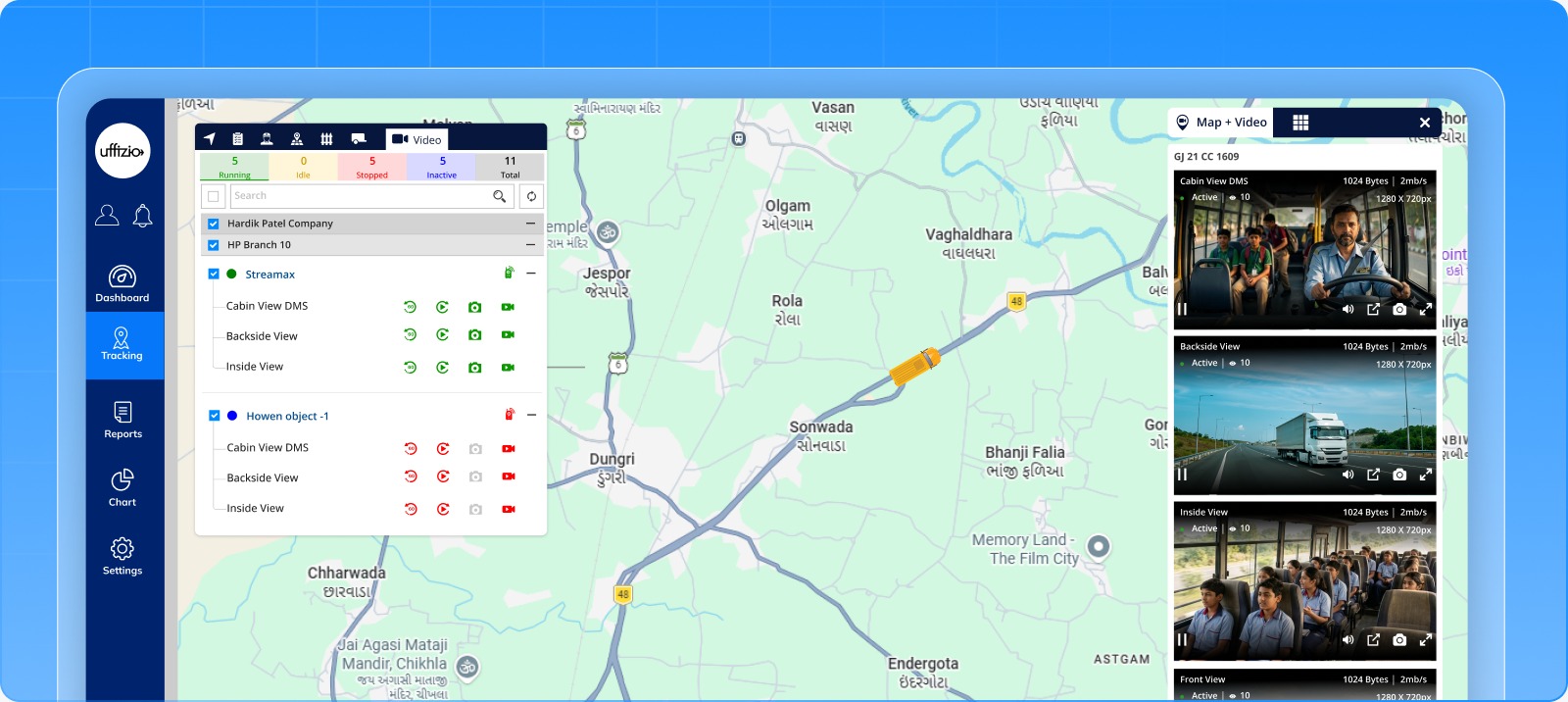
Video-enabled vehicles are now more closely integrated into the Live Tracking experience through a dedicated Video tab in the Object List.
Previously, video telematics vehicles were available through a separate side panel, requiring users to navigate away from the existing Object List workflow. With this enhancement, video-enabled vehicles can now be accessed directly within the same tab-based structure used for other objects.
The new Video tab provides a dedicated view of video-enabled vehicles, available camera channels, and video-specific actions, making video monitoring more accessible from the Live Tracking screen.
What’s Updated
Dedicated Video Tab in Object List
A new Video tab has been added to the Object List in the Live Tracking screen.
When users select the Video tab, only vehicles with video telematics capabilities are displayed. The tab follows the existing company and branch hierarchy, allowing users to locate video-enabled vehicles within their organizational structure.
Each vehicle can display:
- Vehicle Name / ID
- Associated Company / Branch
- Available camera channels
- Video-specific actions
Camera Channel Selection
For each video-enabled vehicle, users can access the camera channels available according to their assigned rights.
Available channels can include:
- CH1
- CH2
- CH3
- CH4
Users can select the required channels using checkboxes before starting a video stream. This allows them to monitor only the camera feeds they need.
Video-Specific Actions
The Video tab provides direct access to commonly used video telematics actions:
- Live Streaming
- History Playback
- Snapshot
- Intercom
These actions can be accessed directly from the video-enabled vehicle listing.
Enhanced Live Streaming Experience
After selecting a vehicle and the required camera channels, users can start live streaming without leaving the Live Tracking workflow.
The video experience opens in a right-side panel with two viewing options:
- Map + Video
- Matrix View
Map + Video View
Map + Video combines vehicle location and video monitoring within the same interface. Users can view available camera feeds along with relevant vehicle location and video information, making it easier to correlate live vehicle movement with video activity.
Matrix View
Matrix View provides an alternative way to display selected video feeds. Users can view multiple camera channels together with the available player statistics and video monitoring functionality.
This is particularly useful when multiple camera channels from the same vehicle or multiple vehicles need to be viewed and monitored together from a single view.
What problem does this enhancement solve?
Previously, video telematics vehicles were displayed through a separate side panel instead of being part of the existing Object List structure. This required users to navigate to a separate area to access video-enabled vehicles, making video monitoring less aligned with the existing Live Tracking workflow.
The enhancement solves this by bringing video-enabled vehicles directly into the Object List through a dedicated Video tab. Users can access video-enabled vehicles, camera channels, and video-specific actions within the same workflow used for other objects.
Key Benefits
- Video-enabled vehicles are available directly within the Object List through the dedicated Video tab.
- Users can select individual camera channels based on their assigned rights.
- Live Streaming, History Playback, Snapshot, and Intercom are available directly from the vehicle listing.
- Map + Video and Matrix View provide flexible ways to monitor live video.
- Video telematics is integrated into the existing Live Tracking interface, reducing the need to navigate between separate monitoring areas.
How does this help our partners?
For partners managing or deploying video telematics-enabled fleets, the unified Video tab provides a more organized way to access video-enabled vehicles within the Live Tracking environment.
Partners can benefit from:
- Easier access to video-enabled vehicles through the existing Object List.
- A consistent workflow for managing vehicle tracking and video monitoring.
- Direct access to camera channels based on user rights.
- Faster access to Live Streaming, History Playback, Snapshot, and Intercom.
- Flexible monitoring through Map + Video and Matrix View.
- Reduced dependency on a separate video monitoring panel.
This makes the SmartBus Live Tracking experience more aligned for partners who need to manage vehicle location and video telematics capabilities together.
2. Unified Trip Checkpoints View in Running Trip for Driver App
Managing checkpoints during an active trip is an important part of the Driver App workflow. To simplify checkpoint access and attendance-related activities, the previous Upcoming and Visited tab structure has been replaced with a single consolidated checkpoint list.
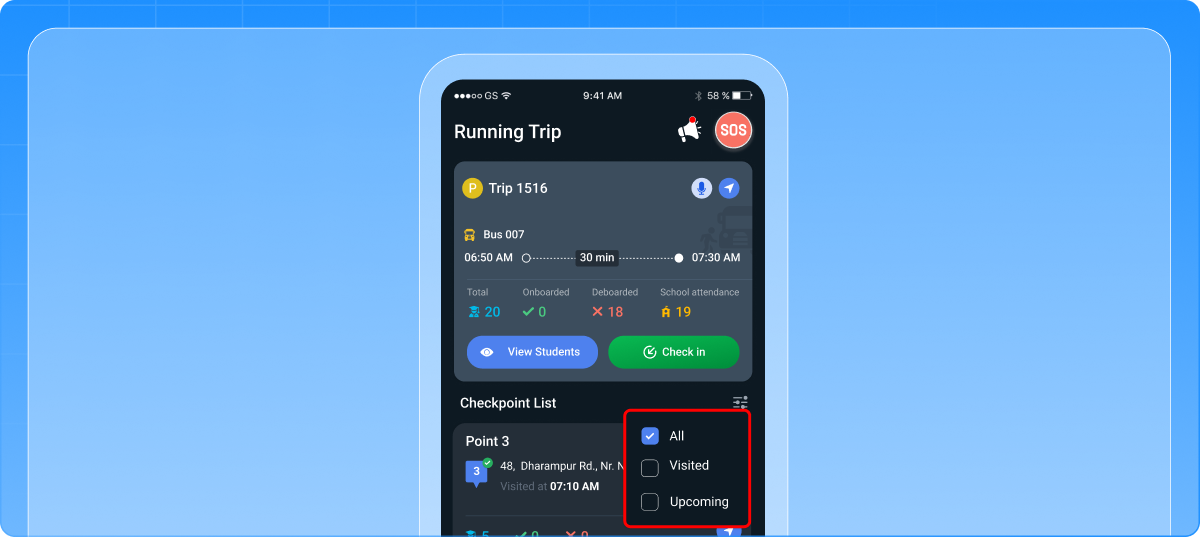
All checkpoints are now displayed together in their configured sequence, with a status filter that allows drivers to view All, Upcoming, or Visited checkpoints as required.
What’s Updated
Consolidated Checkpoint List
The separate Upcoming and Visited tabs have been removed from the Running Trip screen.
All checkpoints for the active trip are now displayed in one list below the running trip details. The checkpoints continue to follow the configured sequence, so their order remains consistent with the trip configuration.
This allows drivers to access checkpoint information without repeatedly switching between tabs.
New Checkpoint Status Filter
A new filter provides three options:
- All
- Upcoming
- Visited
All is selected by default when no filter has been selected for the current trip.
Drivers can select the required status to display only the checkpoints relevant to their current task.
View Upcoming Checkpoints
The Upcoming filter displays only checkpoints that are currently classified as upcoming, allowing drivers to focus on checkpoints still ahead in the active trip.
View Visited Checkpoints
The Visited filter displays checkpoints that have already been visited, allowing drivers to review completed checkpoints from the same Running Trip screen.
Checkpoint Sequence and Data Integrity
Filtering changes only which checkpoints are displayed. It does not change the configured checkpoint sequence or modify any underlying trip data.
The following remain unchanged:
- Checkpoint status
- Visit status
- Attendance data
- Configured checkpoint sequence
Whether drivers select All, Upcoming, or Visited, the displayed checkpoints continue to follow the configured sequence.
What problem does this enhancement solve?
Previously, checkpoints were divided into separate Upcoming and Visited tabs. Drivers had to switch between these tabs to review checkpoint details and access relevant attendance-related actions during an active trip. This increased navigation effort and made attendance marking less convenient.
The enhancement addresses this by displaying all checkpoints in one consolidated list while providing All, Upcoming, and Visited filters. This gives drivers a simpler way to access the required checkpoints without repeatedly switching between tabs.
Key Benefits
- Drivers no longer need to switch between separate Upcoming and Visited tabs.
- All checkpoints are available in one consolidated list with status-based filtering.
- Drivers can quickly focus on upcoming or visited checkpoints when required.
- Applicable attendance actions remain accessible from the consolidated checkpoint list.
- Filtering does not alter the configured checkpoint order.
- The selected filter remains active for the current trip and is maintained separately for each user and trip.
How does this help our partners?
For partners using SmartBus for school transportation operations, the consolidated checkpoint workflow provides a simpler Driver App experience during active trips.
Partners can benefit from:
- Reduced navigation for drivers during running trips.
- Easier access to all checkpoints from one consolidated list.
- Quick filtering between All, Upcoming, and Visited checkpoints.
- Continued access to checkpoint details and attendance-related actions.
- Consistent checkpoint sequencing even when filters are applied.
- Filter preferences that remain specific to the current trip and user.
The enhancement helps partners provide drivers with a more streamlined trip-management workflow while preserving existing checkpoint and attendance behavior.
3. Download Vehicle Playback History as a PDF
Vehicle playback information is often required for operational reviews, investigations, communication, and record-keeping. Previously, users could view playback history within the SmartBus portal but could not download the information for offline use or sharing.
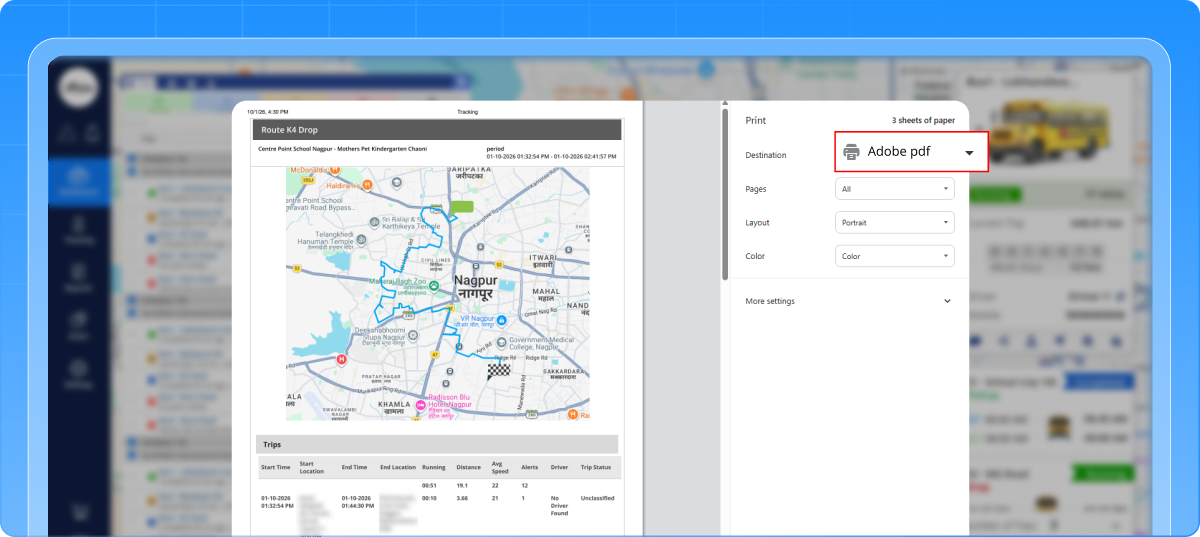
A new Download PDF option is now available in the Vehicle Playback screen, allowing authorized users to generate and download a report based on the selected vehicle and playback filters.
What’s Updated
What This Enables
Users can now:
- Download playback history for offline review.
- Keep vehicle journey records for future reference.
- Share playback information with management or clients.
- Use playback records during investigations.
- Maintain downloadable records for compliance-related requirements.
- Generate reports for specific vehicles and selected playback filters.
Simple Playback History Export
The download process is designed to remain simple and requires a maximum of two clicks to generate the report.
A loading indicator is displayed while the PDF is being generated, followed by a success message when the report is ready. If generation fails, an appropriate error message is displayed.
Accurate Data Based on Selected Filters
The generated PDF is based on the selected vehicle and playback filters and uses the playback data available in the system.
This allows users to download the same relevant journey information they are reviewing without manually recreating the details in another format.
What problem does this enhancement solve?
Previously, users could view vehicle playback information within the SmartBus portal, but they could not download the playback history for offline review, sharing, or record-keeping. This also made it difficult to provide downloadable playback evidence for investigations and compliance-related requirements.
The enhancement introduces a Download PDF option in Vehicle Playback, allowing users to generate a PDF based on the selected vehicle and playback filters. The report can contain playback route information, journey summary, event information, and selected playback details.
Key Benefits
- Users can retain playback information for review without relying on the portal.
- Downloaded reports can be shared with management, clients, or relevant stakeholders.
- Vehicle journey information can be maintained as a downloadable record for future reference.
- Historical playback reports can support operational investigations and reviews.
How does this help our partners?
For partners using SmartBus to monitor and manage vehicle operations, downloadable playback history provides a practical way to retain and share historical journey information.
Partners can benefit from:
- Offline access to vehicle playback records.
- Easier sharing of playback information with management or clients.
- Downloadable evidence for operational investigations.
- Better record-keeping of historical vehicle journeys.
- PDF reports based on selected vehicle and playback filters.
Conclusion
The updates enhance SmartBus across video monitoring, driver operations, and vehicle history management.
The new Video tab brings video-enabled vehicles, camera selection, live streaming, playback, snapshots, and intercom actions directly into Live Tracking, while the unified checkpoint view simplifies how drivers manage Upcoming and Visited checkpoints during active trips. The new PDF download option for Vehicle Playback History also makes it easier to save, share, investigate, and maintain journey records. Together, these improvements create a more connected, organized, and efficient SmartBus experience for monitoring vehicles, managing trips, and accessing historical information.